
Managing Customer Accounts
In order for Distributors to create users, notifications, manage SSAS recipients on behalf of their customers, they must first log in to the customer account.
Distributors can access their customers' Podium accounts directly from their own account, without needing separate login credentials for each one.
Each customer account is set up in Podium as a child account beneath the distributor's parent account.
Before you start:
- This feature is only available to Distributors with a parent Podium account. If your organisation does not have a parent account, the Child Accounts option will not appear.
- You will need your Podium password to complete the process.
1. Access a Child Account
- Log in to your parent account.
- Select your name in the lower left corner, then choose Organisation Settings.
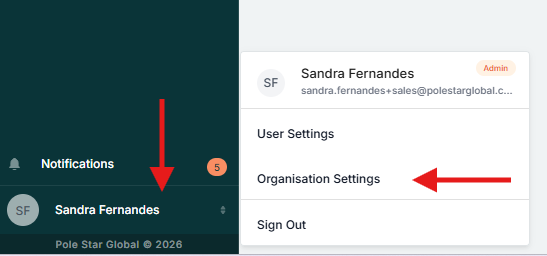
4. Locate the child account you want to access. If several accounts are listed, use the search bar to find it.
5. Hover over the account name to reveal the Access button, then select it.
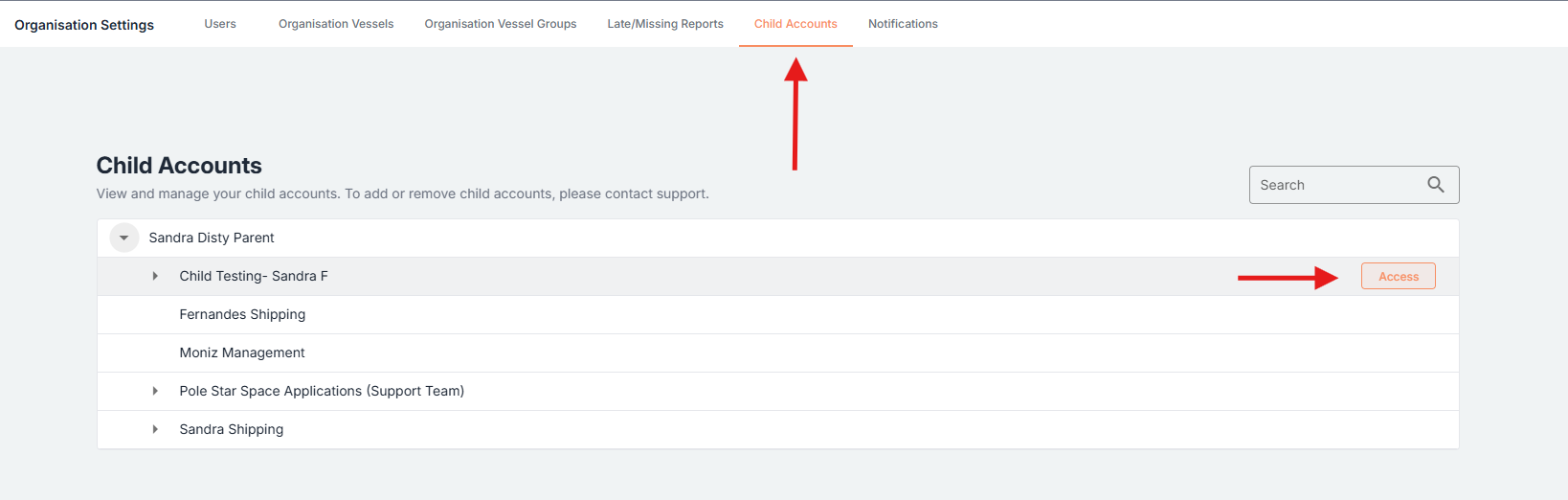
Note: When you select a user, you inherit that user’s permissions. For example, selecting a viewer gives you viewer access, while selecting an admin gives you admin access.
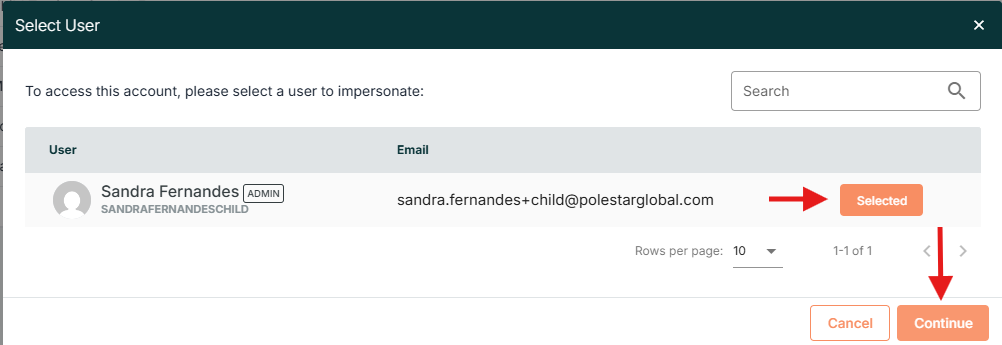
Note: Use the password you normally use to sign in to your own account.
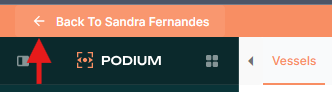
8. Wait a few seconds. You will then be taken into the child account. You’ve logged in successfully when an orange banner appears at the top showing which user you’re impersonating and which account you’re accessing.

Additional Information:
- You will access a child account as a specific user within that account, so the pages, vessels and settings you see will match that user's permissions.
- The transition takes around five seconds to complete.
2. Log out of a Child Account
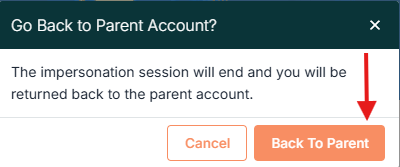
1. To leave a child account, click Back to + your user on the top left side of the orange banner.
3. Taking action on behalf of your customer
To create or manage any of the items below for a customer, follow the login steps above, then select the relevant link below.
Create & Manage Users Here
Create & ManageNotifications Here
Create & Manage SSAS Recipients Here